Landing Page Form Design: How to Capture More Leads Without Scaring Visitors Away
 Grademypage Team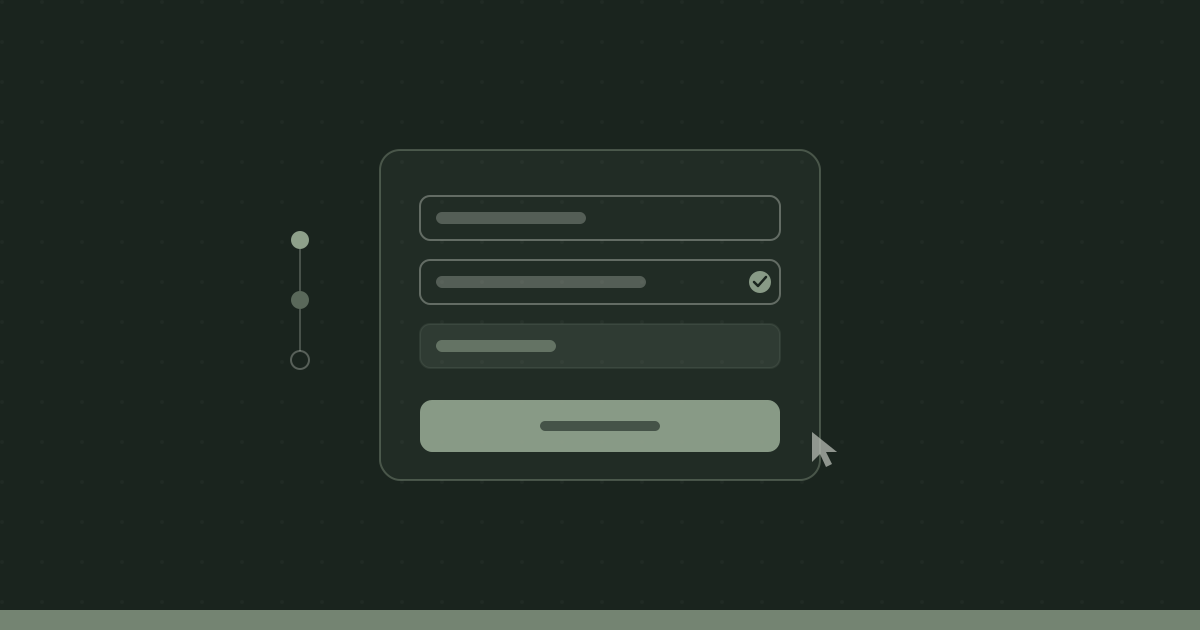
Your form is where intent goes to die. A visitor reads your headline, scrolls past your proof, decides they want what you're offering, and then hits a wall of input fields that asks for their phone number, company size, and job title before they've even tried the thing. Most of them leave.
That's not a hypothesis. HubSpot's analysis of thousands of forms found that cutting a form from four fields to three lifted conversions by around 50 percent. Each field you add is another reason to bounce, another half-second of friction, another moment for second thoughts to win. Landing page form design is the highest-leverage conversion work most teams never do, because the form looks "done" the moment it functions.
A form that functions and a form that converts are different things. Here's how to build the second kind.
Why Form Length Is Killing Your Conversions
The single biggest lever in form design is also the simplest: ask for less. Every field is a small tax on the visitor's patience, and that tax compounds. Marketo found that reducing form fields from nine to five produced a 34 percent jump in conversions. Expedia famously removed one optional "Company" field and recovered $12 million a year in profit, because that field confused users into entering their bank's name in an address line.
The fix starts with an honest audit of what you actually use.
- Cut any field your team doesn't act on. If nobody looks at "job title" before the first sales call, it doesn't belong on the form. Collect it later.
- Default to email only for top-of-funnel offers. A free audit, a newsletter, an ebook: one field. You can enrich the rest from the email domain or a follow-up.
- Use progressive profiling for returning visitors. Tools like HubSpot and Marketo can show different fields to people you've already met, so you gather more over time instead of all at once.
- Question every "required" asterisk. A required phone number on a low-intent offer is a conversion killer. Make it optional or remove it.
A good rule of thumb: name and email convert well, three to four fields is the sweet spot for most lead-gen offers, and anything past five needs to justify its existence with a real downstream use.
Single-Step vs. Multi-Step Forms
If you genuinely need a lot of information, the answer usually isn't a shorter form. It's a longer one, broken into steps.
This sounds backwards until you see the numbers. Multi-step forms routinely outperform single-step forms with the same fields, sometimes by 30 to 300 percent depending on the source, because they change the psychology of the first interaction. Instead of showing someone a daunting wall of ten inputs, you show them one easy question.
Why the first easy field matters
The principle is commitment and consistency. Once someone answers an easy opening question ("What's your website URL?" or "What are you trying to improve?"), they've started. People finish what they start. By the time they reach the fields that feel like work, they're already invested, and a progress bar at the top tells them the end is in sight.
Multi-step forms win when:
- You need more than four or five fields. Splitting the burden across screens keeps any single screen from feeling heavy.
- You can lead with an easy, engaging question. A dropdown or a button choice makes a frictionless first step.
- The offer is considered, not impulsive. Demos, quotes, and audits suit a guided flow.
Single-step forms still win for short asks. If you only need an email, don't make someone click "Next" to get to a second screen with the submit button. Friction you add on purpose still counts as friction.
Field-Level UX That Removes Friction
Length and structure get the big wins. The details below recover the leaks that remain, and they're the kind of thing visitors never consciously notice but always feel.
Use real labels, not just placeholders
Placeholder text that disappears when someone starts typing is one of the most common form mistakes. The user forgets what the field was for, can't check their answer, and accessibility tools struggle to read it. Always use a visible label above the field. Placeholders are for examples ("you@company.com"), not for replacing the label.
Validate inline, not after submit
Nothing frustrates a user like filling out a form, hitting submit, and getting bounced back to fix an error they didn't know they made. Validate as they go:
- Confirm correct entries with a quiet checkmark so people know they're on track.
- Show errors next to the field, in plain language, the moment the user leaves it. "Enter a valid email" beats a red box with no explanation.
- Never clear the form on error. Losing already-typed data is the fastest way to lose the lead entirely.
Match input types to the data
Small technical choices make mobile forms feel effortless. Use type="email" so phones surface the keyboard with the @ symbol, type="tel" for phone numbers, and inputmode="numeric" for codes. Turn on autocomplete attributes so browsers can autofill name, email, and address in one tap. On mobile, a form that triggers the right keyboard and autofills correctly can be the difference between a 20-second task and an abandoned tab. If mobile is where most of your traffic lives, our guide to mobile-first design covers the broader patterns your form should fit into.
Keep the layout single-column
Multi-column forms make the eye zigzag and invite skipped fields. A single vertical column reads as one clear path from top to submit. Stack your fields, full width, one decision at a time.
Where Trust and Your CTA Belong on the Form
A form is a moment of vulnerability. You're asking for personal information in exchange for a promise. The area around the submit button is where you either close that gap or widen it.
Put reassurance right where the anxiety peaks
The instant before someone hands over their email is when doubt is loudest. Answer it on the spot with microcopy directly beneath the button: "We'll never share your email," "No spam, unsubscribe anytime," or "Free, no credit card required." A privacy reassurance next to a submit button has been shown to lift conversions on its own, because it addresses the exact fear the user is feeling at that exact second.
Trust signals belong near the form, not buried in the footer. A small lock icon, a "GDPR compliant" note, a line of social proof like "Join 4,000+ marketers," or a single recognizable client logo all do quiet work here. We break down which signals carry the most weight in our piece on the trust signals every landing page needs, and a form is one of the most valuable places to deploy them.
Write a submit button that names the reward
"Submit" is the weakest word you can put on a button. It describes the user's effort, not their reward. Your button copy should complete the sentence "I want to ___." So "Get My Free Audit" beats "Submit," and "Send Me the Guide" beats "Sign Up." This is the same principle that governs every button on the page, and our full guide to designing CTA buttons that actually get clicked goes deeper on copy formulas that outperform generic labels.
Make the button high-contrast, full-width on mobile, and impossible to confuse with a secondary action. The form should have exactly one obvious thing to click.
How to Test Your Form for Leaks
Best practices get you most of the way. The last stretch is specific to your audience, and the only way to find it is to measure.
Start by watching where people drop. Form analytics tools like Hotjar, Microsoft Clarity, or your own event tracking can show field-by-field abandonment. The field where people quit is your problem field. Often it's a single intrusive question (phone number, company size) that you can cut or make optional to recover a chunk of conversions immediately.
Then test the changes that matter most, roughly in this order:
- Number of fields. Almost always the biggest lever. Try removing one field and measure.
- Single-step vs. multi-step. Worth testing whenever you have five or more fields.
- Button copy. Cheap to change, frequently a double-digit lift.
- Privacy and trust microcopy. Small addition, outsized effect on hesitant users.
- Field labels and ordering. Lead with the easy fields, save the sensitive ones for last.
Run these as real experiments, not gut calls. A form test needs enough conversions per variant before the result means anything, and small samples produce confident-looking numbers that evaporate at scale. Our guide on A/B testing your landing page covers how to size and read these tests without fooling yourself. Tools like Grademypage can flag form problems before you even start testing, so you spend your traffic on the experiments most likely to pay off.
Take Action
Your form is one of 22+ factors Grademypage evaluates when it scores a landing page. The audit flags forms that ask for too much, missing labels, weak submit copy, and absent trust signals, alongside issues in headlines, speed, SEO, and accessibility, so you know exactly which conversion leak to fix first.
Paste your URL into Grademypage and get your score in under a minute. It's free, no account required.
See your page grade.
Paste any landing page URL and get an instant, AI-powered audit across 22+ factors.
Run a free auditFree · No account required · Results in ~1 minute